Hi,
First, we need to create an instrument track, so press the “+” button on the left and select “instrument”.
The audio unit folder should be preselected, but if it isn’t, go to External instruments → AudioUnit and select GeoShred.
Close the window with the “x” in the top right corner.
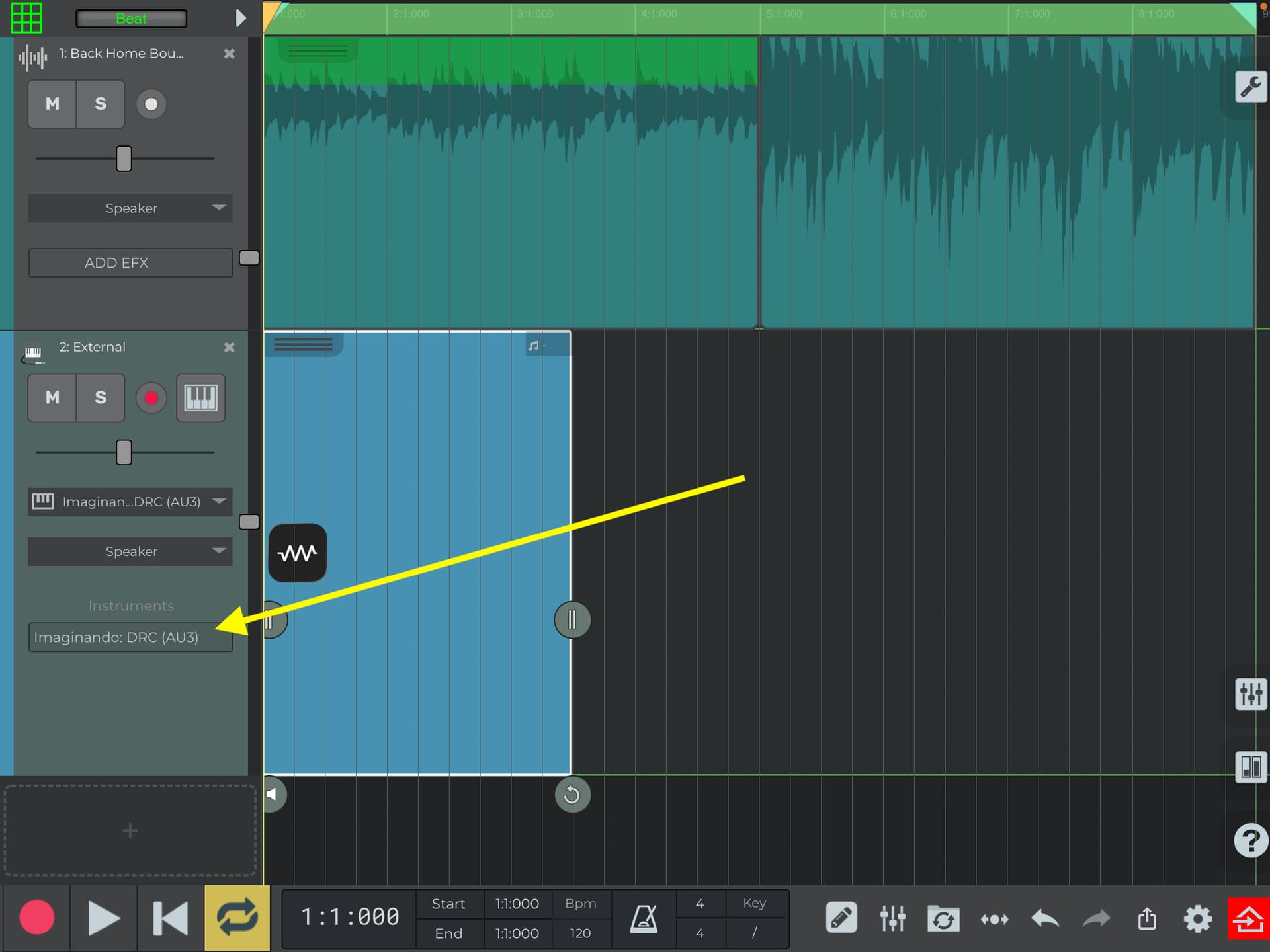
Use pinch to zoom to enlarge the tracks until you can read the instrument and effects list, then press AU3 as shown in the screenshot below.
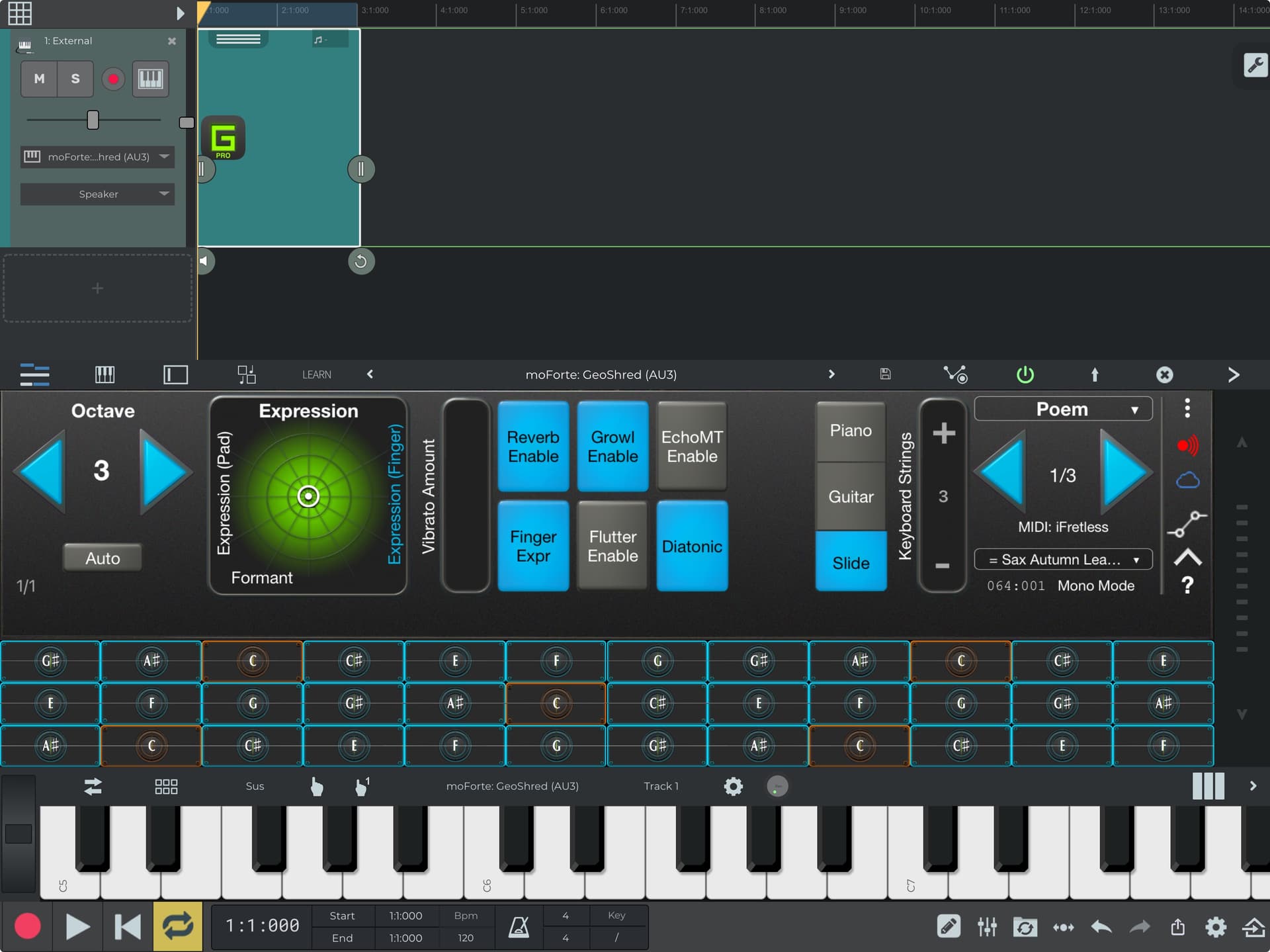
To view the interface in full screen, press the up arrow (located in the top right corner near the x to close the window).
If you haven’t already done so, connect the MIDI keyboard to the iPad via cable or Bluetooth (let me know if you need help with the wireless connection).
nTrack automatically recognises the keyboard, and by selecting the track you just created, you will already be able to hear the audio generated by playing the keyboard.
To start and stop recording, press the rec button at the bottom left corner.
To start and stop the playback press the play button (located right next to the rec one), it will light up in green when activated
Let me know if any of the steps are unclear or if you need further assistance.
Best,
Gabriele
As for viewing GS without the screen midi keyboard, the previous instructions still apply:
Open the plugin (or rather the fx shell) from the instruments and effects list as shown in the screenshot
Enlarge UI with the up arrow
Unfortunately, the routing you want is not available at the moment, but there is a way around this problem.
Create a track with GS as the instrument
Create an “helper” instrument track
After pressing on “instrument” scroll down the first column and select “n-Track Virtual Output”
On the “helper” track, tap on the “rec arm” button (the one next to the solo button)
If the button is grey tap on it, then select “Arm Recording”
Tap on “rec arm” and select GS as the MIDI input, you should find something like “PlugIn - moForte: GeoShred(AU3)”
Now start the recording and you will be able to record GS MIDI output to this helper channel
Once you finished you can drag the MIDI part from the “helper” track to the “main” one with GS to reproduce the MIDI during playback
Also if you download GS Control (AU3) you could put it on the first track and then use GS Pro on the “helper” instead of the “Virtual Output” and perform from the GS Control UI
I hope this helps. If you need further clarification, please let me know.
Best,
Gabriele